
Claude’s memory is like the movie “Memento”, and that’s a good thing
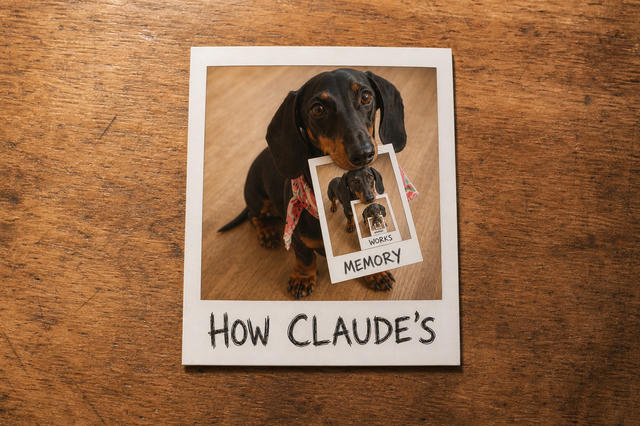
In July, my blogger friend Felix, who runs the Urgeschmack YouTube channel, sent me an email: after upgrading to the Claude Pro plan and setting up his first project with some reference notes in a shared folder, he asked if he could switch on memory per project only. He told me that a global memory felt wrong to him, not for privacy reasons, but because he didn’t want a machine reminding him of something he’d written years ago in a completely different context.
Memory in Claude (and other AI assistants) is a very useful, but often misunderstood feature. It turns out that there are multiple layers of memory available, all under your control, changed and accessed at different frequencies. So if you have questions like Felix, and wonder how to best take advantage of memory in Claude, this post is for you!
I love movies, so let’s start with one.
Meet Leonard
If you haven’t seen Christopher Nolan’s Memento (2000), here’s a spoiler-free synopsis: Leonard Shelby (Guy Pearce), former insurance investigator, suffers a head injury and can no longer form new memories. He remembers everything up to the injury perfectly well, but anything new is gone within minutes. Trying to find the man who attacked his wife, he developed a system, consisting of Polaroid photos with scribbled notes, a document filing system he keeps in his motel room, and a handful of critical facts tattooed onto his body. The movie is told backwards, so you experience his confusion from his perspective. A great movie, highly recommended, and a good fit for this article, because Leonard’s system is a good mental model for understanding how an AI assistant like Claude handles memory.
Claude doesn’t remember, it re-reads
Every time you send a chat message, Claude wakes up with no memory of anything that happened before. It only knows what was in its training data set, with a cutoff date that is usually months in the past. What it gets from its chat system is one long input document, put together by the app you’re using. This input contains Anthropic’s instructions on how to behave (the “system prompt”), a list of tools it may use (like web search), a list of skills it can look up when needed (for example, how to write Word documents), the preferences you typed into your app’s Settings (“I’m Constantin, and I…”), any notes it took about you from previous chats (that’s your AI app’s “memory” feature), project-specific notes it took (if your chat app supports projects as a concept), and then, at the very end, your conversation so far.
Claude reads all of that in one go, uses its tools and skills when needed (which in turn update and re-feed the same long document), and eventually writes its answer at the bottom. The next time you press Return, it wakes up blank again and reads the whole thing from the top. Like Leonard, reading his Polaroids every morning.
(This is a very simplified description. In reality, there’s a lot of clever engineering going on, like prompt caching, which makes sure the previous version of the document can be cached on Anthropic’s servers, avoiding expensive reloads. However, it’s correct enough for us to understand what’s going on.)
Two important things follow for you and Felix: first, the model doesn’t change at all. It doesn’t “remember” anything. Any concept of “AI memory” boils down to notes in a long input document. Second, “memory” is not hidden from you. It’s really data like any other document, and you can read and manipulate it.
Leonard’s three kinds of notes
Looking at Leonard’s system a little closer, we see that he keeps three kinds of notes, very similar to how Claude organises its own notes:
The tattoos are the critical facts that Leonard needs to know at all times, and he sees them every morning. For Claude, those are the instructions and preferences you wrote into the app’s Settings menu: “I’m Constantin, I live in Munich, keep an informal style, use emojis, etc.” They always load into Claude’s context, they change rarely, and you can edit them any time (unlike real tattoos).
The Polaroids are the notes Leonard takes as he goes, annotates, and sometimes overwrites. For Claude, that’s its memory feature: short notes it writes itself while you chat, organised by topic. They always load too, but they’re constantly updated by Claude as it notices new things it wants to keep in mind.
The filing system is the folder of documents in the motel room. Leonard doesn’t carry it around; he goes and looks things up when he needs to answer specific questions. For Claude, that is everything that lives outside the always-loaded part: the documents you add to a project, and, if you want, a folder or notebook of your own that Claude may read and write to. This is used when needed, can be as wide and deep as you like, and is edited by both you and Claude.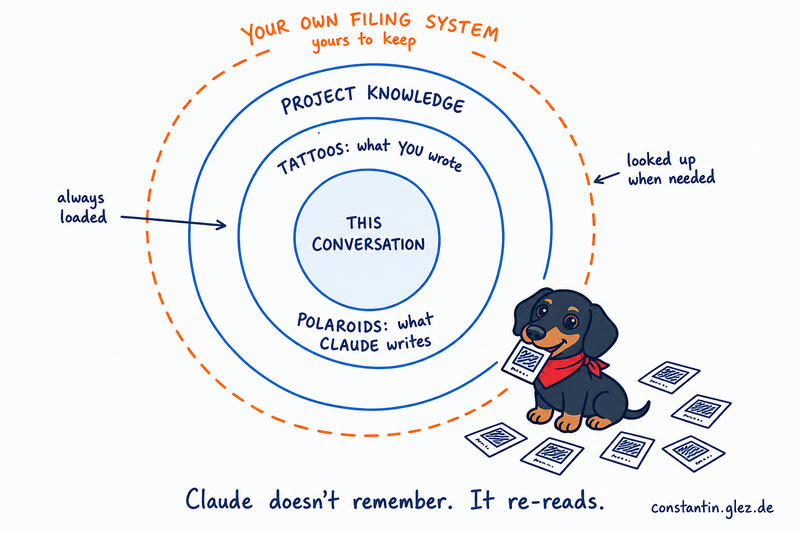
With this mental model, we can answer the “knows too much about me” worry: the tattoos (what you tell Claude in Settings) are yours. The Polaroids (its built-in memory feature) are a short stack you can flip through (also in Settings). The filing system is where the depth and breadth live, and you can shape it any way you like.
It also answers Felix’s question about separating memories: projects are how Claude keeps notes apart. Each project has its own memory. Claude uses them together with what it knows about you in general, and if you want a project completely sealed off from the rest of your life, there is a switch for that on the project page.
You’re always in control
Here’s why people might feel uncomfortable, and why controls matter: earlier this year, researchers at the Max Planck Institute looked at 2,050 memory entries that 80 real ChatGPT users had donated. 96% of those entries had been written by the system on its own initiative, and about half contained what the authors call psychological insights: wishes, intentions, emotions (Dash et al., 2026). I don’t know the equivalent numbers for Claude, and I would be surprised if any assistant’s notes were entirely free of this. I can see that this is an attempt at personalisation: the system wants to give you better answers, and in my experience it does. I also understand how some may not quite like this. The key thing here is whether you’re in control or not. In Europe, the GDPR gives you exactly that right, and it applies to an assistant’s notes about you as much as to any other database.
As of this writing, there’s a control panel under Settings → Memory where you can find the notes, sorted by topic, and you can read, edit or delete every single one. You can switch the individual features on and off: whether Claude may search old chats, write new memories, or include sensitive topics. There’s some detailed documentation available on how Claude’s memory features work. If you want a conversation to leave no trace at all, there is an incognito mode (the little ghost icon). And you can always tell Claude directly: “forget that” or “remember this”.
If you would rather switch memory off altogether, that is a perfectly good choice too. Simon Willison, whose writing on AI I read regularly, has explained why he does: when you test models or want a clean slate for every experiment, you need full control over what goes into the conversation.
I would encourage everyone to spend a few minutes exploring Claude’s memory features and checking out some individual memory entries in Settings to get familiar with them. In my experience, most of the unease is unfamiliarity, and ten minutes of reading and clicking around can solve it. I hope this article contributes to that!
What memory level is right for you?
So, after understanding how memory works for Claude, how should you use it and which kinds should you use?
You can think of the different types of memory as levels, from simple and easy to more sophisticated and powerful:
Level 0: let Claude do it. Go to Settings and turn on the memory features you’re comfortable with. You know where to read them, where the delete button is, and how to turn them off again. Write the tattoos, let Claude take Polaroids. This is the default for a reason, and it is enough for most people most of the time.
Level 1: one project per area of your life. We haven’t talked much about the concept of Projects in Claude yet, but essentially, they’re collections of related memories and files, with some specific instructions for each. You might feel ready for this when you use Claude for different areas of your life, like work, personal life, specific hobbies, and so on. One project per major area, each with its own instructions, its own documents, and its own memory. I confess I’m lazy here: I have one project for Claude as my Chief of Staff, and one for my work as a business consultant. That’s it for now.
Level 2: your own filing system. You might feel ready for this when you catch yourself explaining the same background for the third time, or when you’d like your notes to work independently of any single app or vendor. It’s similar to what many call a “Second Brain” (a term coined by Tiago Forte in his book Building a Second Brain): a collection of notes in a more or less sophisticated directory structure, either as plain text files or in a dedicated note-taking app. By giving Claude read and write access to it, this becomes a shared, growing, and always-up-to-date repository of knowledge about what’s going on in your collaborative work with Claude. It’s a bit of a pro move and takes a bit of discipline, but it (quite literally) adds a lot of context to your AI workflows and it can turn your AI assistant into a true co-worker who “knows” everything it needs to, in order to be as useful as possible in your daily work.
What’s your memory strategy going to be?
In my case, I find it immensely useful to use all levels of memory with Claude. Take this article as an example: the thinking started as an email exchange with Felix in July 2026, which I shared with Claude, who helped me research a reply. Now, in October, with access to my notes, it researched Anthropic’s documentation and some blog posts and articles I collected on the memory debate. We brainstormed the structure together, then I let it write the first draft based on this and my own knowledge base (I’m a better editor than a blank-page writer). I edited it and explained my changes to Claude so it can pick up on my preferences and stylistic choices. However, the ideas, opinions, and any remaining mistakes are mine.
Your mileage will vary, of course, and that’s the fun of discovering a new world of collaborative work tools. So, take your time, explore different memory concepts with Claude or your favourite AI assistants, and find out what works for you. I’m curious to learn what you’ll end up using (or not using), and why. Share your comments below or send me a message!